


YouTube Kids
4.288.60K Reviews
App Specs
- Version
- Varies with Device
- Updated On
- License
- Free
- Downloads
- 500,000,000+
- Developer
- Google LLC
- Categories
- Entertainment
- Platform
- Android, iOS
Screenshots
 Analysis by AppCompare
When I’m choosing a video app for a child, I want the first few minutes to feel manageable: find a suitable video, understand the basic controls, and know where I can step in if needed. YouTube Kids is built around that kind of family use. It is a free entertainment app from Google LLC, available for Android and iOS, and its child-focused layout makes it feel different from opening the regular YouTube app and hoping its recommendations are a good fit.
What to expect from a child-focused video app
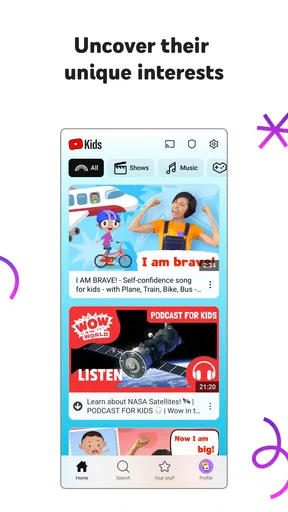
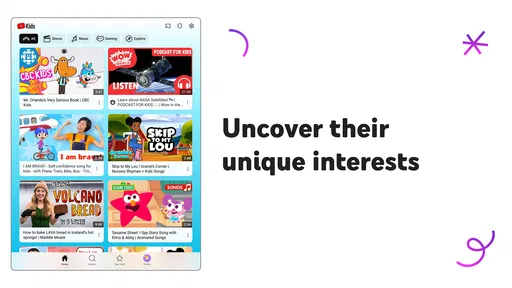
The broad idea is simple: children browse videos in an interface intended for them, while adults get settings that can help shape the experience. You will see a bright home screen and categories such as Shows, Music, Learning, and Explore. That gives a child a few starting points instead of requiring them to know a creator’s name or search phrase. In practice, the categories can be useful prompts, but they don’t remove the need for a parent to check what a particular child is actually watching.
Google released the app on 23 February 2015, and it has grown into a familiar option for families: it has over 500 million installs and an average rating of 4.2 from around 3.2 million ratings, alongside roughly 87,000 written reviews. Its content rating is Everyone. Those figures suggest broad use, but they don’t tell me whether a specific video suits my child, so I treat the app as a tool for guided viewing rather than a substitute for my judgment.
Guides and Analysis on YouTube Kids
A World of Wonder
YouTube Kids is essentially a walled garden of content, crafted specifically for young ones. The first thing you’ll notice is the user-friendly interface. It’s bright, engaging, and intuitive enough for kids to navigate on their own. The app is available on both Android and iOS, making it super accessible for anyone with a smartphone or tablet.
When you open the app, you’re greeted with a colorful home screen that features various categories like Shows, Music, Learning, and Explore. These categories help your child find content that suits their interests, whether it’s learning the alphabet or jamming to their favorite nursery rhymes.
Getting through the first setup
I’d start by opening the app with the child nearby, rather than handing over the device as soon as it launches. Take a moment to look through the available controls and decide what boundaries make sense for your household. The app offers individual profiles, so if siblings use the same device, setting up a separate experience for each child can make browsing feel less muddled. It also gives adults a practical reason to revisit settings as children’s interests change.
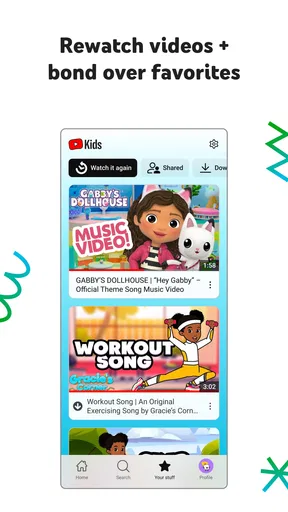
For a first session, keep the goal small: choose one topic the child already enjoys, such as music or a learning video, and explore that together. This helps you see how the home screen and categories work without turning setup into a long project. It also gives you a chance to notice whether the suggestions feel appropriate for your child. A child who is not yet comfortable navigating alone may benefit from an adult making the first selection and showing how to return to the home screen.
Worth Reading Before You Choose

Baby Panda World Brings Quick Play to Modern Phones, but Its Game Library Feels Busy

ESPN’s Live Game View Makes Following Close Games Easier

QuizzLand Review: A Good Fit for Short Trivia Breaks, Not Every Player

Basketball Stars: Multiplayer Is Fast, but Can It Recover When Matches Go Wrong?

WEBTOON Turns Phone Updates Into a Better Reading Routine

Link to Windows Runs on Shared Habits, Not Social Feeds
Parental Controls and Safety
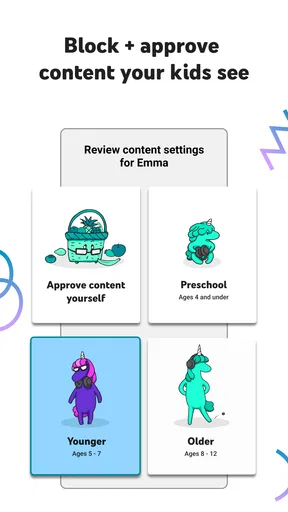
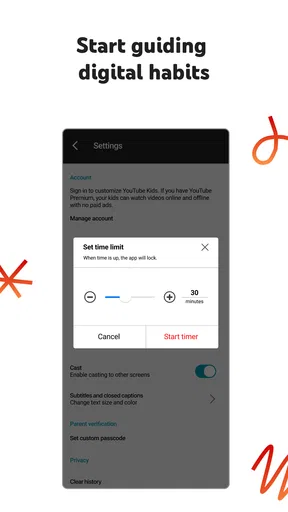
One of the standout features of this app is the robust set of parental controls. As a parent, I know how important it is to keep an eye on what my child is watching. The app allows you to set a timer to limit screen time, and you can also block specific videos or channels. Plus, with the option to create individual profiles, each child can have their personalized experience.
There’s also a safety net in place with curated content that’s supposed to filter out the inappropriate stuff. While it’s not foolproof, it does a decent job of keeping things clean and kid-appropriate. Just remember, it’s always a good idea to keep an eye on what your little ones are watching.
The first useful session, not just the first launch
A meaningful first success is not simply getting a video to play. I’d count it as a win when the child can find a familiar kind of content, watch comfortably, and understand that an adult can help change the selection or end the session. For example, during a quiet stretch while dinner is being prepared, a parent might choose a short music or learning session, set a timer, and stay within earshot. The timer can help make the stopping point less surprising, though it works best when the adult also explains what will happen when time is up.
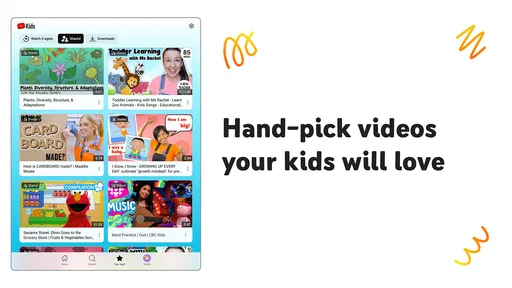
Blocking is most useful as a response to something specific: if a video or channel is not right for your family, you can use the control rather than relying on the child to avoid it next time. I would treat this as ongoing housekeeping, not a one-time safety switch. A quick check of what a child has been choosing can help you decide whether to adjust a profile or block content, especially when siblings have different tastes.
Learning and Entertainment Combined
What I love about this app is how it blends learning with entertainment. Kids can dive into educational videos that cover a range of topics from math and science to arts and crafts. This is a fantastic way to make learning fun and engaging. After all, who said learning can’t be a blast?
And let’s not forget the entertainment factor! There are tons of engaging shows and music videos that keep kids entertained for hours. Whether they’re into animated characters or catchy tunes, there’s something for every little viewer.
Where the experience can feel less straightforward
The biggest thing I would keep in mind is that a child-friendly design does not mean every viewing choice is automatically right for every child. The filtering is a helpful layer, but the original app itself recognizes that it is not foolproof. Children differ in age, attention, and sensitivity, so a video that seems fine for one may not be a good fit for another. I’d use the available controls and adult supervision together, rather than assuming either one can do the whole job alone.
Another small trade-off is that an easy-to-browse screen can encourage a child to keep choosing one video after another. A timer gives families a way to set a boundary, but it does not replace a routine or conversation about stopping. If a child becomes upset when viewing ends, I’d set expectations before starting and choose a natural stopping point rather than relying on the timer to settle the disagreement.
It is also worth deciding who controls the device. A young child may be able to tap through a colorful interface without being ready to make every viewing decision independently. I find the app better suited to shared family rules than to an “install and forget” approach. Checking in from time to time, and letting a child tell you what they enjoy, makes the controls more useful and the experience more personal.
How it compares with familiar alternatives
Compared with the regular YouTube app, this one is the more obvious place to begin when the main user is a child: its interface and content organization are designed around children, and it brings parental controls into the experience. The regular app may suit an older viewer who wants a broader, less child-oriented viewing environment, but I would not choose it as a simple substitute for a young child’s dedicated setup.
Compared with a service built around a fixed collection of children’s shows, YouTube Kids is more oriented toward browsing among videos and categories. That can make it handy when a child wants music, learning material, or a particular kind of clip, but it also means parents should pay attention to what is being selected. If your priority is a tightly chosen set of familiar programs with as few browsing decisions as possible, a more limited viewing option may suit your household better. The right choice depends on whether discovery or a narrower selection matters more to you.
Who I’d recommend it to—and who might prefer something else
I’d recommend giving it a try if you want a child-focused way to explore online videos, appreciate being able to block particular content, and are comfortable staying involved in what your child watches. It may be especially useful in a home where adults want children to browse broad interests, from songs to learning topics, while still having controls available when needed.
I’d be more cautious if you need a completely hands-off option, if your child has difficulty stopping after videos, or if your family prefers a very narrow collection chosen in advance. In those situations, a parent-selected playlist or a more limited service may offer a calmer fit. This app’s flexibility is useful, but flexibility brings more choices to supervise.
Final Thoughts
All in all, YouTube Kids is a solid option for parents wanting to provide their kids with a safe online video experience. With its user-friendly design, strong parental controls, and a mix of educational and entertaining content, it’s a reliable app that keeps little minds engaged.
So, if you’re in the market for an app that gives you peace of mind while keeping your kids entertained and educated, YouTube Kids might just be the perfect fit. Give it a whirl, and let me know what you think!
For me, the best way to approach it is as a shared starting point: set up the child’s experience, explore a few choices together, and use the timer or blocking controls when they fit your household’s needs. The app is free and has a Everyone content rating, but those labels are not a promise that every video will match every family’s preferences. A little adult attention at the beginning—and occasional check-ins later—helps turn a colorful screen into a more considered viewing routine.
Pros
- Kid-friendly interface for easy navigation.
- Parental controls ensure content safety.
- Offline video access for road trips.
- Age-appropriate content filters available.
- Customizable profiles for multiple kids.
Cons
- Limited content compared to regular YouTube.
- Some ads may still appear.
- Occasional glitches in video playback.
- Requires internet for most features.
- Parental controls need regular updates.
FAQs for YouTube Kids
What is YouTube Kids and how does it differ from regular YouTube?
YouTube Kids is a family-friendly app designed specifically for children, providing a safer online video experience. Unlike regular YouTube, it offers a curated selection of content suitable for young audiences, with parental controls and filtering options to ensure kids only access age-appropriate videos.
How do parental controls work in YouTube Kids?
Parental controls in YouTube Kids allow guardians to customize their child's viewing experience. Parents can set time limits, block specific content, and choose the type of videos that are accessible. These controls help guardians manage screen time and ensure a safe digital environment for their children.
Is the content on YouTube Kids completely safe for children?
While YouTube Kids is designed to offer child-friendly content, no system is perfect. The app uses automated filters to block inappropriate content, but some unsuitable videos may still appear. Parents should supervise their child's usage and utilize parental controls for added safety and peace of mind.
Can YouTube Kids be used offline?
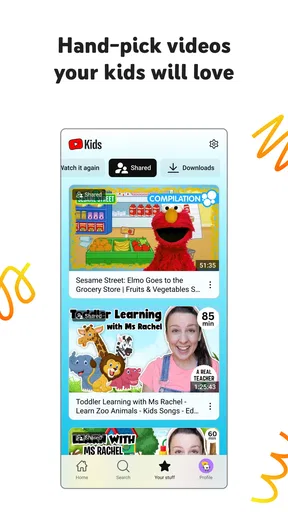
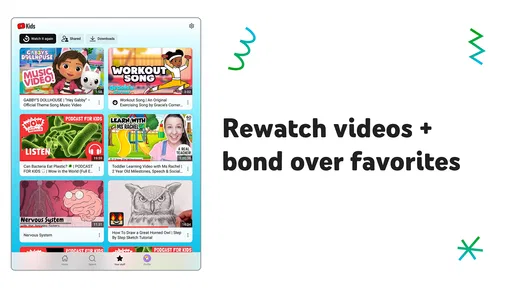
Yes, YouTube Kids offers an offline feature that allows children to watch pre-downloaded videos without an internet connection. Parents can select videos to download in advance, providing entertainment options for kids during travel or in areas with limited connectivity.
Are there any costs associated with using YouTube Kids?
YouTube Kids is free to download and use, but it does include ads. However, parents can opt for a YouTube Premium subscription, which eliminates ads and offers additional features, such as background play and offline viewing, enhancing the overall experience for both kids and parents.


